Step 1 of 5
Download the SleepHQ app
Download the SleepHQ app and sign in or create a free account.
Scan with your phone’s camera to go straight to the SleepHQ app in your app store.


Google Play and the Google Play logo are trademarks of Google LLC.

Setup guide
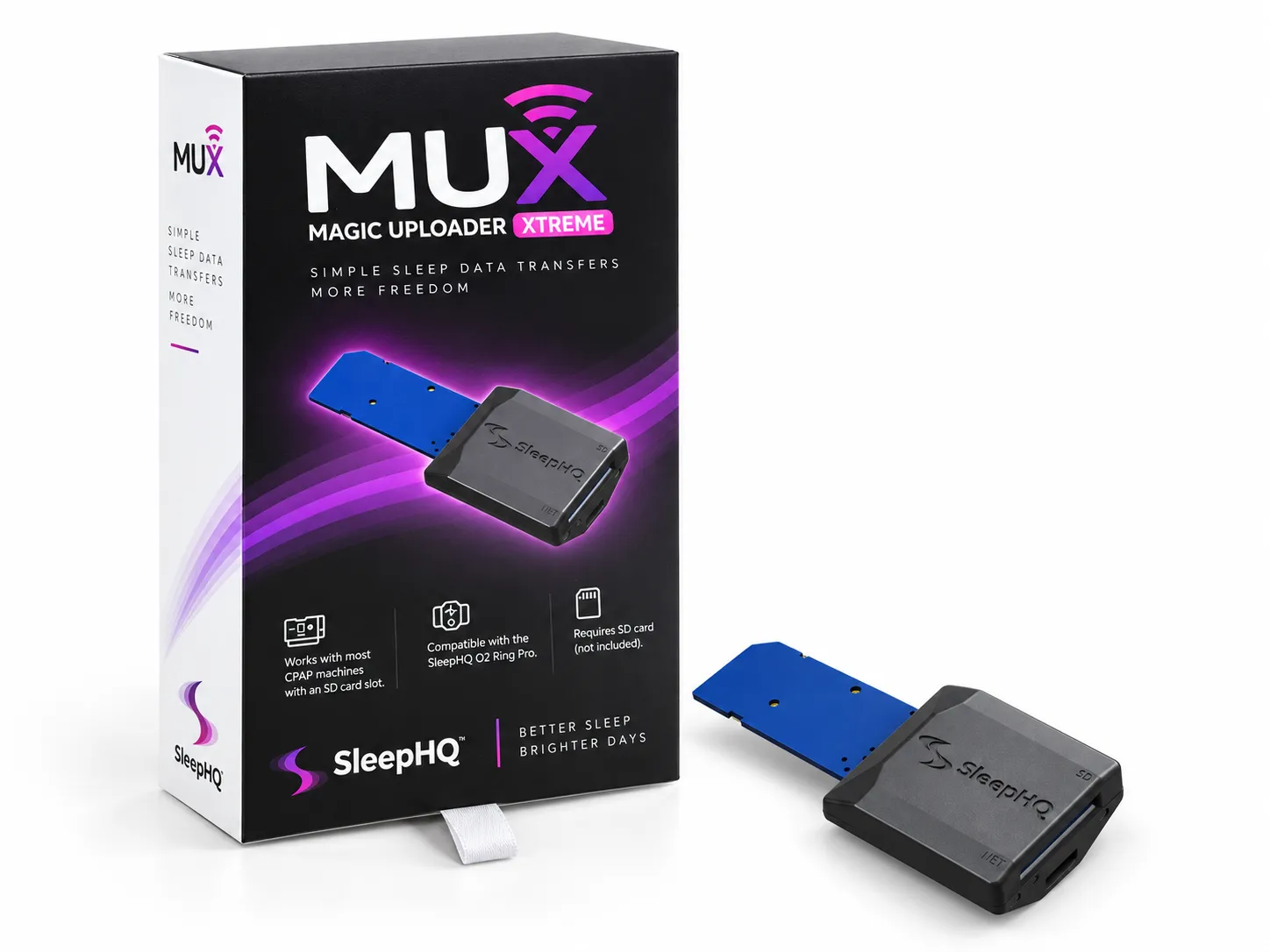
Everything you need to get your Magic Uploader Xtreme sending your CPAP data to SleepHQ on its own, every night, with nothing to press.
Before you start
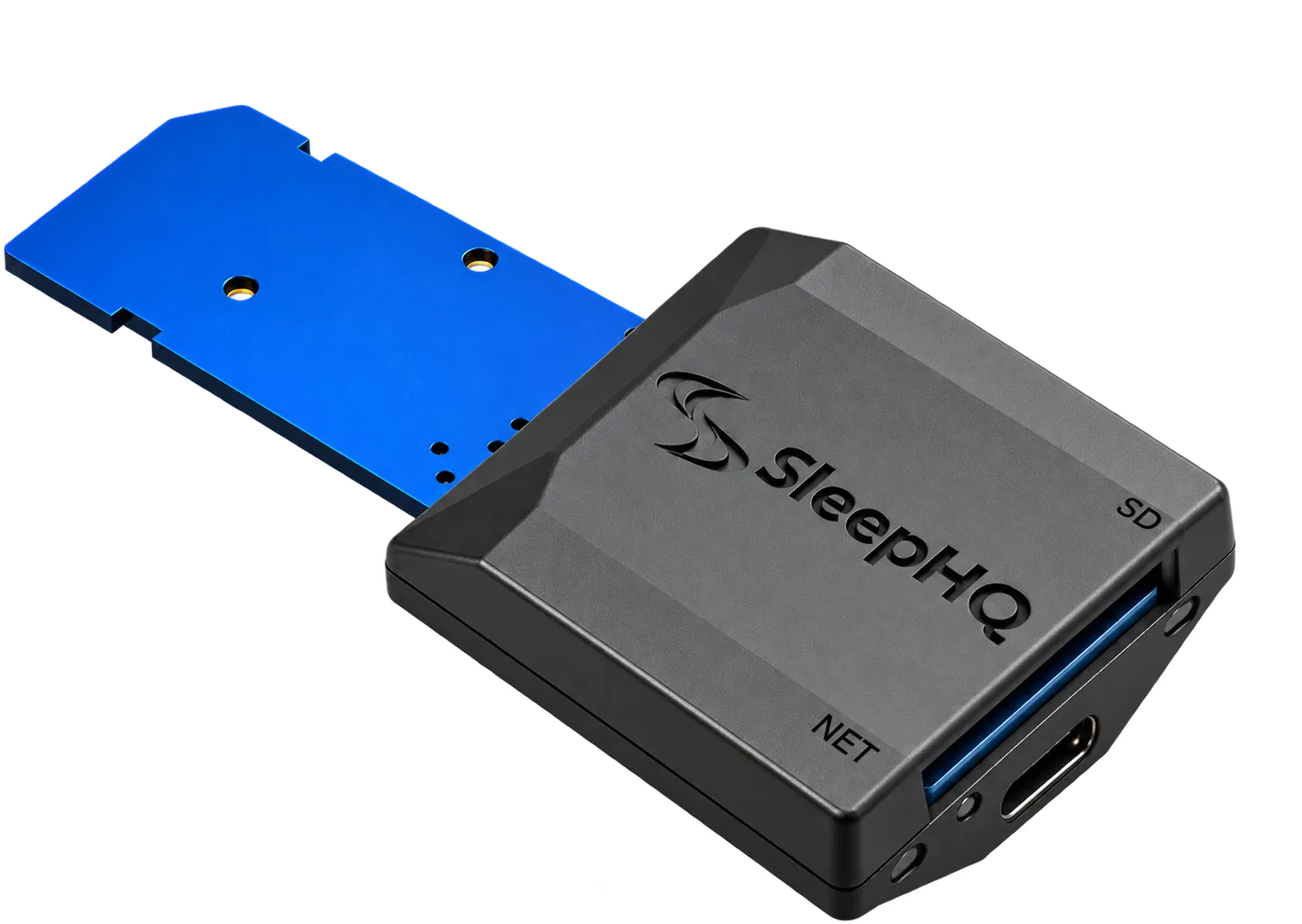
The box holds the Magic Uploader Xtreme and a USB-C cable. Two of the four things below are yours to supply, so it is worth having them to hand before you take your CPAP machine apart.
And the USB-C cable it comes with.
Something to plug that cable into. The Magic Uploader Xtreme does not come with one.
There is none in the box either, so if your machine already has one in it, that is the card to use.
To run the SleepHQ app. The whole setup happens there.
If you would rather see the whole thing done than read it, this 15-minute video walks through the same five steps below: fitting the SD card, powering the MUX, pairing it in the SleepHQ app and plugging it into your machine.
Step 1 of 5
Download the SleepHQ app and sign in or create a free account.
Scan with your phone’s camera to go straight to the SleepHQ app in your app store.
Google Play and the Google Play logo are trademarks of Google LLC.
Step 2 of 5
Push your SD card into the Magic Uploader Xtreme. If your CPAP machine already has a card, use that one.
Having trouble?Step 3 of 5
Plug the USB-C cable into the Magic Uploader and a USB power source. Keep it out of your CPAP machine for now. It’s ready when the light flashes slow blue.
Having trouble?
Step 4 of 5
Turn on Bluetooth. In the app, tap More, then Devices & Accessories, then Connect a Magic Uploader Xtreme. It’s done when the light goes solid green.
Scan with your phone’s camera to open setup in the SleepHQ app.
Step 5 of 5
When it flashes slow purple, slide it into your CPAP machine’s SD card slot, the same way up as an SD card, with the USB-C cable still plugged in. Never force it. Solid green means it’s connected.
If you are using an SD card extender to plug the MUX into your CPAP machine, plug the MUX into the extender first then plug the extender into your CPAP machine’s SD card slot. Once the lights are solid green you can reconnect your CPAP machine’s water chamber if you needed to remove it to access the SD slot.


Optional
In the app, tap More, then Devices & Accessories, then Configure on your Magic Uploader Xtreme, then Add O2 Ring. Enter the last four digits of the serial number on the side of your ring.
Optional. You can do this later.
That is the last thing you have to do. From now on your Magic Uploader Xtreme uploads your data by itself, every night, with nothing to press and no card to carry to a computer.
The lights
The Magic Uploader Xtreme has two lights: one for the uploader and one for its network connection.
How the uploader itself is getting on.
Whether it can reach SleepHQ.
Two things that are not faults
Both are the uploader working as designed.
Both lights are deliberately dim. They are meant to be readable in a dark bedroom rather than to light one, so in daylight you may have to look straight at them.
They go dark while you sleep. On machines that write to the card as you sleep, as ResMed’s do, both lights go dark while a therapy session is running and come back on when it ends. Löwenstein and Philips machines only save at the end of the session, so on those the lights stay on all night. That is not a fault either: turn on Sleep Mode, on the uploader’s own page in SleepHQ, and the lights stay off the whole time the uploader is in your machine.
The Magic Uploader Xtreme will work with any SD card that is compatible with your CPAP machine, as long as it isn’t formatted exFAT. If you need to format a card, use FAT32, and copy it to a computer first if you want to keep what’s on it, because formatting wipes the card.
If the app says setup failed, tap Try Again and re-enter the password. Wi-Fi passwords are case sensitive, and a wrong one is by far the most common reason this step does not work.
If your network is hidden and is not in the list, tap Other Network… and type its name in yourself.
Press the button on the back of the Magic Uploader Xtreme to start pairing again.
The same way up as an SD card. Not sure which way that is? Insert an SD card first and note which way its contacts face, then take it out and insert the MUX with its contacts facing the same way.
Never force it. If it doesn’t slide in easily, gently wiggle it until it lines up with the slot.
The Magic Uploader Xtreme is powered by its USB-C cable, and needs it connected whenever your CPAP machine is running. Without power, your CPAP machine can’t reach the SD card and shows this error.
First check the cable is plugged into a USB power source that works. Then check your SD card is pushed all the way into the Magic Uploader Xtreme. If the error is still there, take the Magic Uploader Xtreme out and push it back in, pushing on its sides rather than on the card.
What the lights mean says what each light means, and what to do about the ones that need fixing.
Need a hand?
If a step will not work or a light is telling you something that is not on this page, the most common questions are answered in the Help Center, and you can message or email us from there.
Not sure SleepHQ reads your machine? The supported devices page lists every CPAP it reads today.
Join for free
Step 1 needs a SleepHQ account. A free one is all the Magic Uploader Xtreme asks for, and it takes a minute to make.