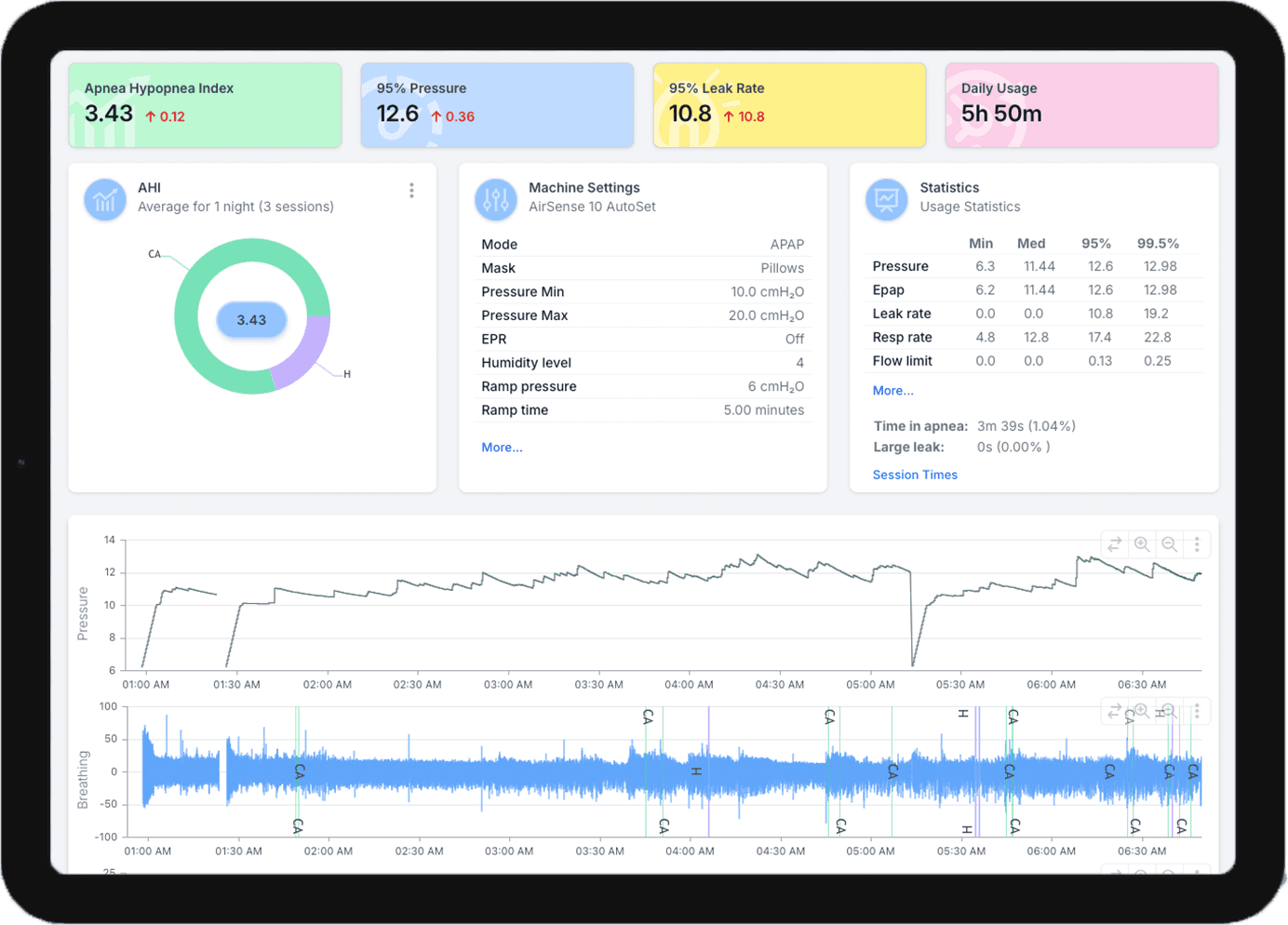
Introducing custom dashboards: see your sleep data your way
Every night on CPAP tells a story, but not everyone wants to read it the same way. Some mornings you just want to know your mask sealed and your AHI stayed low. Other days you want to dig into pressure, leaks and every flagged event to work out why you woke up tired.
Custom dashboards let SleepHQ do both. You decide which cards your dashboard shows, how big each one is, what order they sit in and how they look. Then you can save that arrangement as a layout, make another, and switch between them whenever you like.
Show what matters to you
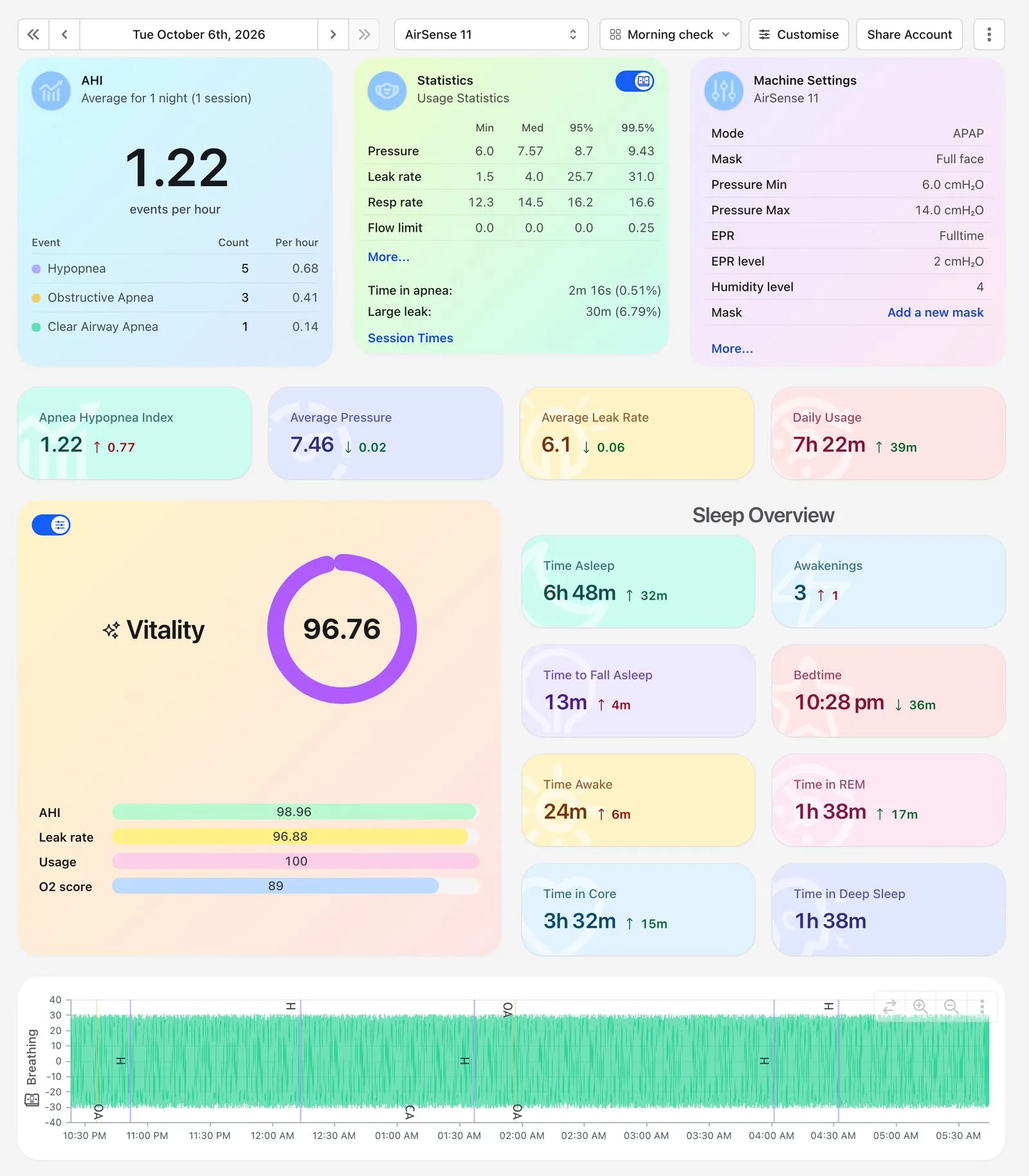
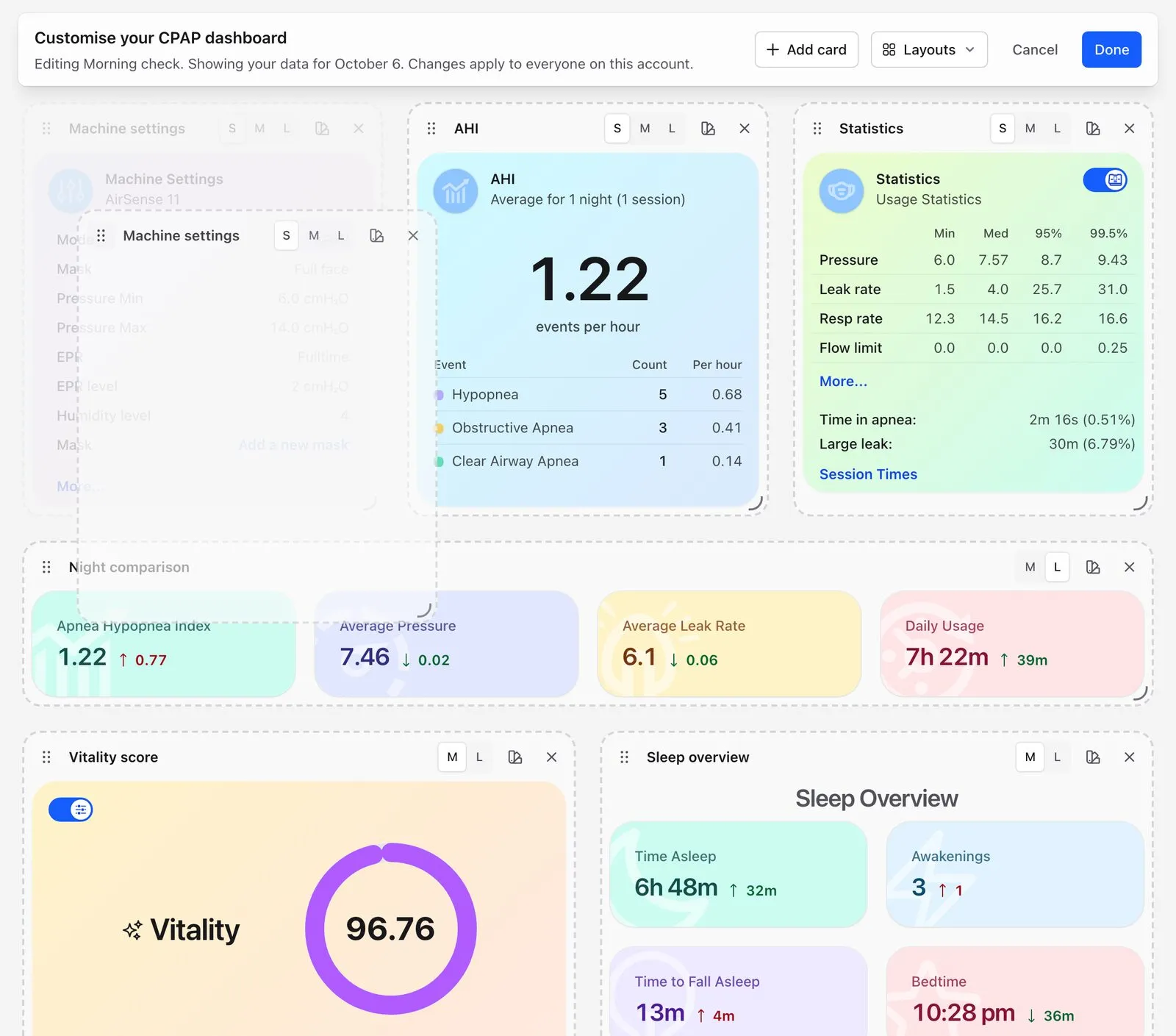
Press Customise and your dashboard becomes a set of cards you can move around. Drag a card to a new spot, add one from the card tray, or remove one you never look at. Cards come in small, medium and large, so a key number can sit neatly in a row while a chart you study gets the full width.
That makes it easy to build a dashboard around how you actually use SleepHQ. A quick morning check might be AHI, usage and leak rate at the top and very little else. A deep dive might lead with the breathing, pressure and leak charts, with the detailed statistics close by.
Make it yours
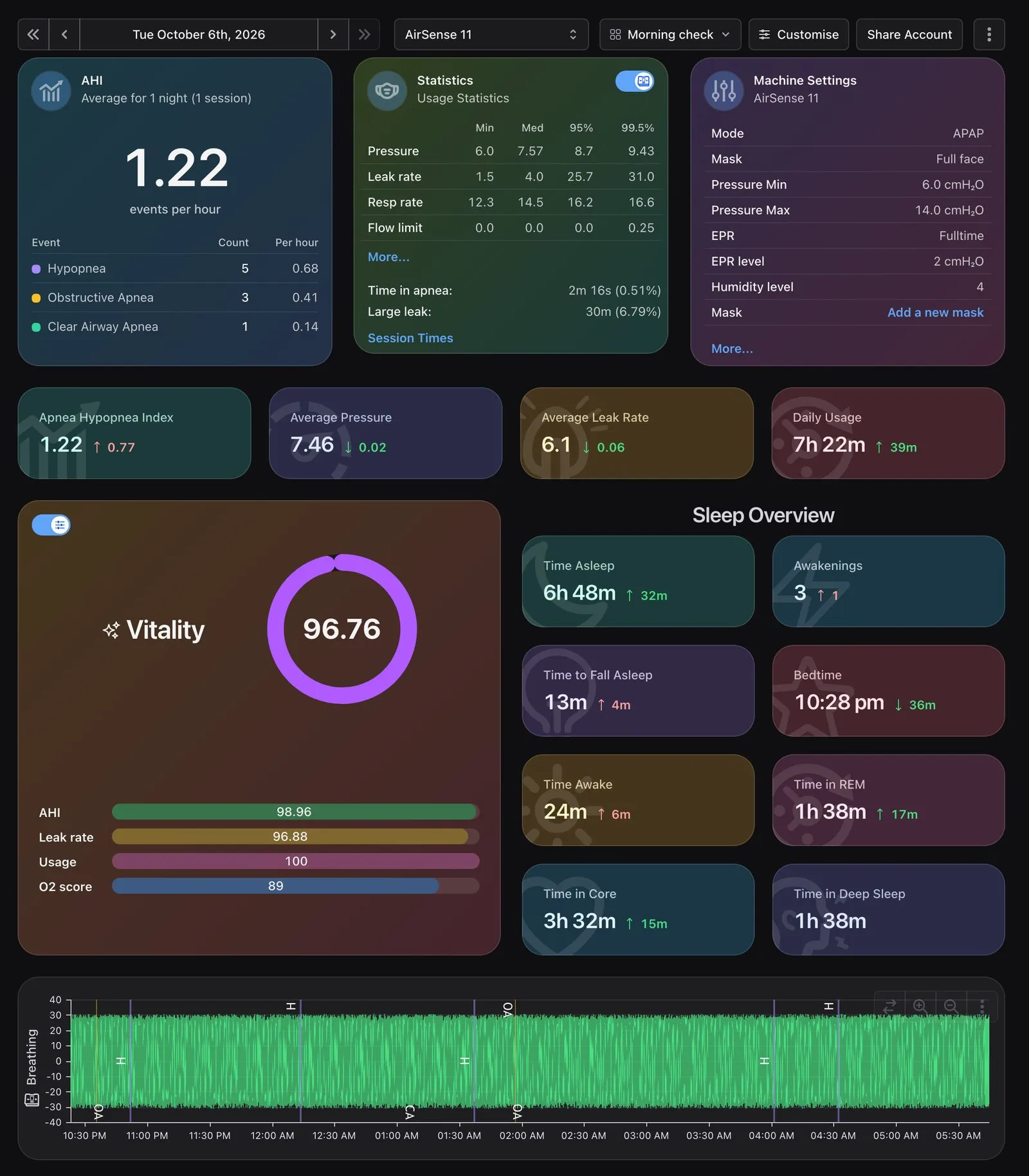
Your dashboard doesn’t have to look like everybody else’s, either. Every card can have its own background, from soft colours to gradients, along with a border, a corner style and an icon. Charts can take your colours too: a colour for each sleep stage, or for each kind of event marked on your breathing chart, so the things you watch for stand out at a glance.
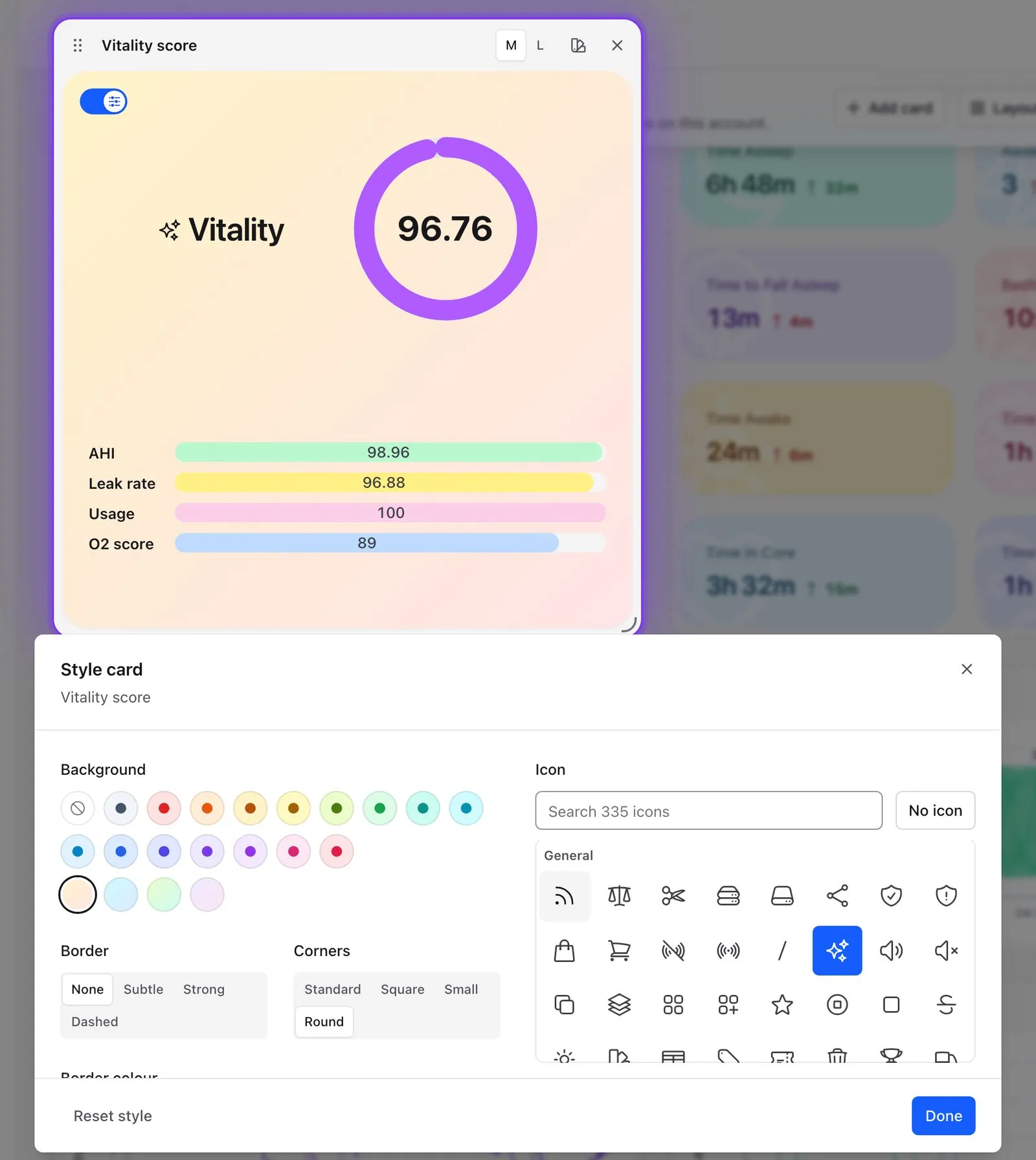
Every colour also has a dark version, so a layout that looks great by day still reads well in dark mode.
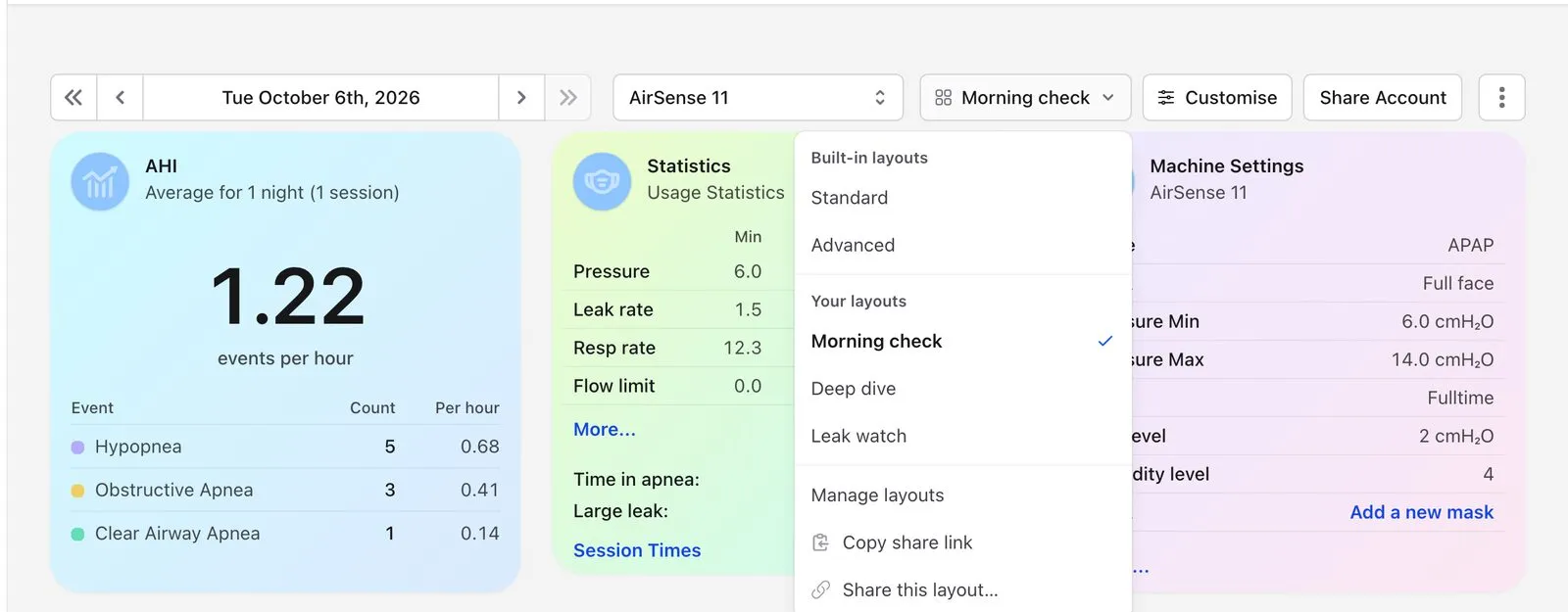
Save layouts and switch in one click
Once you have a dashboard you like, save it as a layout and give it a name. Make as many as you want: perhaps “Morning check” for a quick look, “Deep dive” for when something seems off, and “Leak watch” while you settle into a new mask. Switching between them takes one click from the layout menu.
Two layouts are built in for everyone: Standard and Advanced. If you used to press “Show Advanced Charts” to see more, the Advanced layout is where those charts live now.
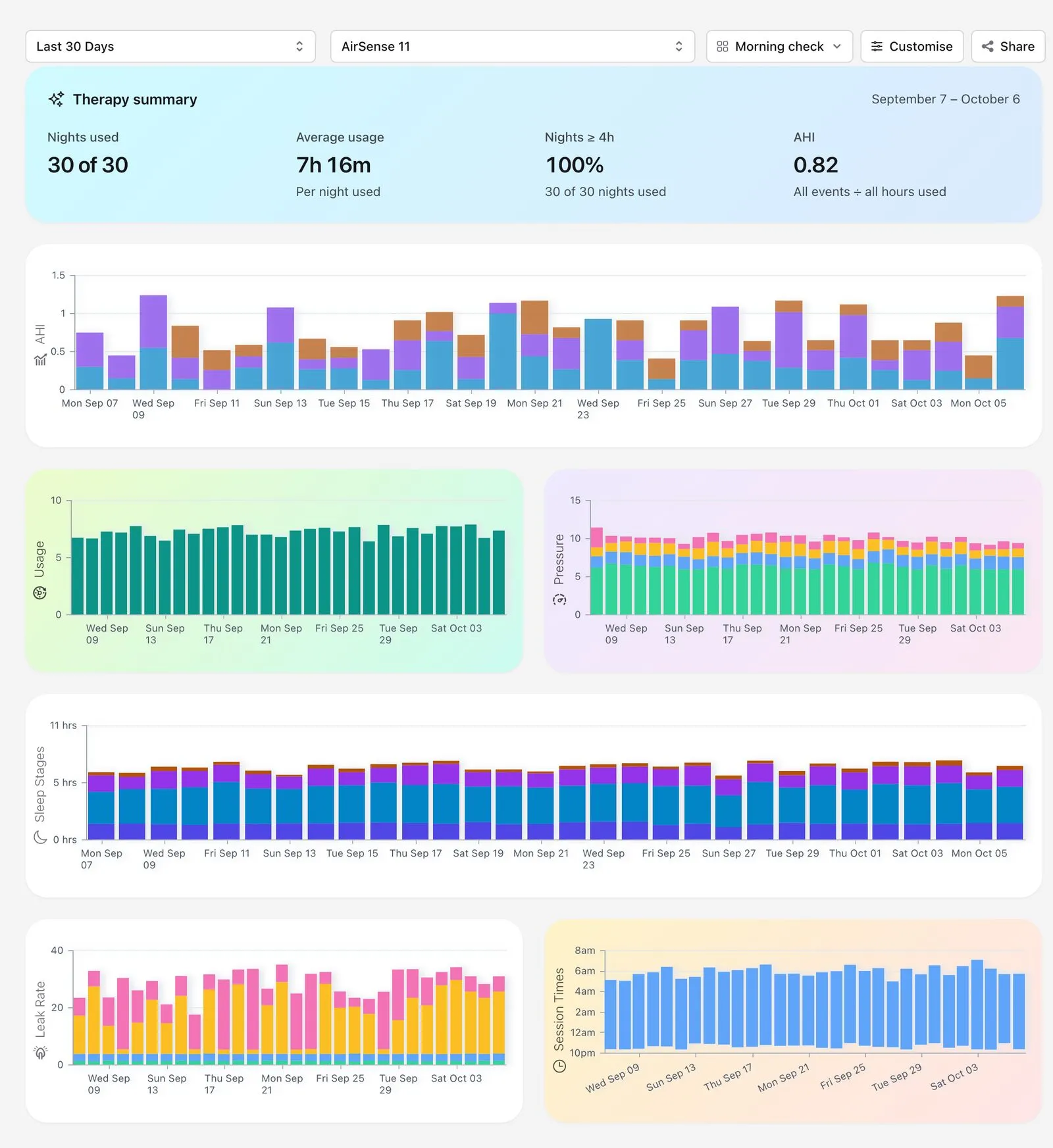
Your trends, too
The Trends page can be customised in just the same way, with the charts you care about, in your order and in your colours. A layout covers both pages, so when you switch to “Deep dive” on your dashboard, your trends switch to match.
Compare charts side by side
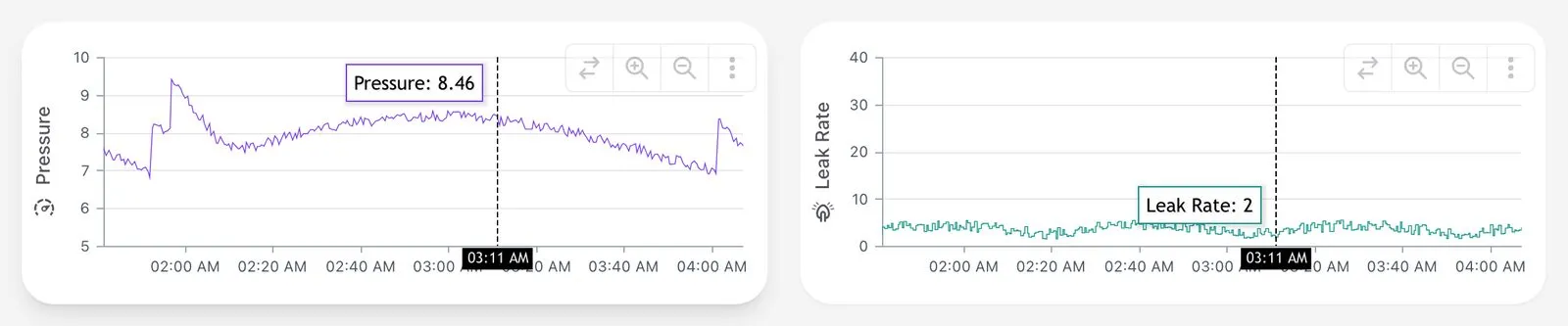
The charts on a night’s dashboard stay in step with each other. Zoom into part of the night on one chart and the others follow, and hovering over a moment shows it on all of them. Put two medium charts side by side and that becomes a simple way to answer questions like “did my leak jump at the same moment my pressure rose?”
Made for O2 Ring users too
Custom dashboards work with O2 Ring data. Your CPAP dashboard and your O2 Ring dashboard each keep their own set of layouts, so you can set each one up for the job it does. You can also add O2 Ring cards to your CPAP dashboard, where they fill in from the O2 Ring night that goes with it.
Share a layout with friends
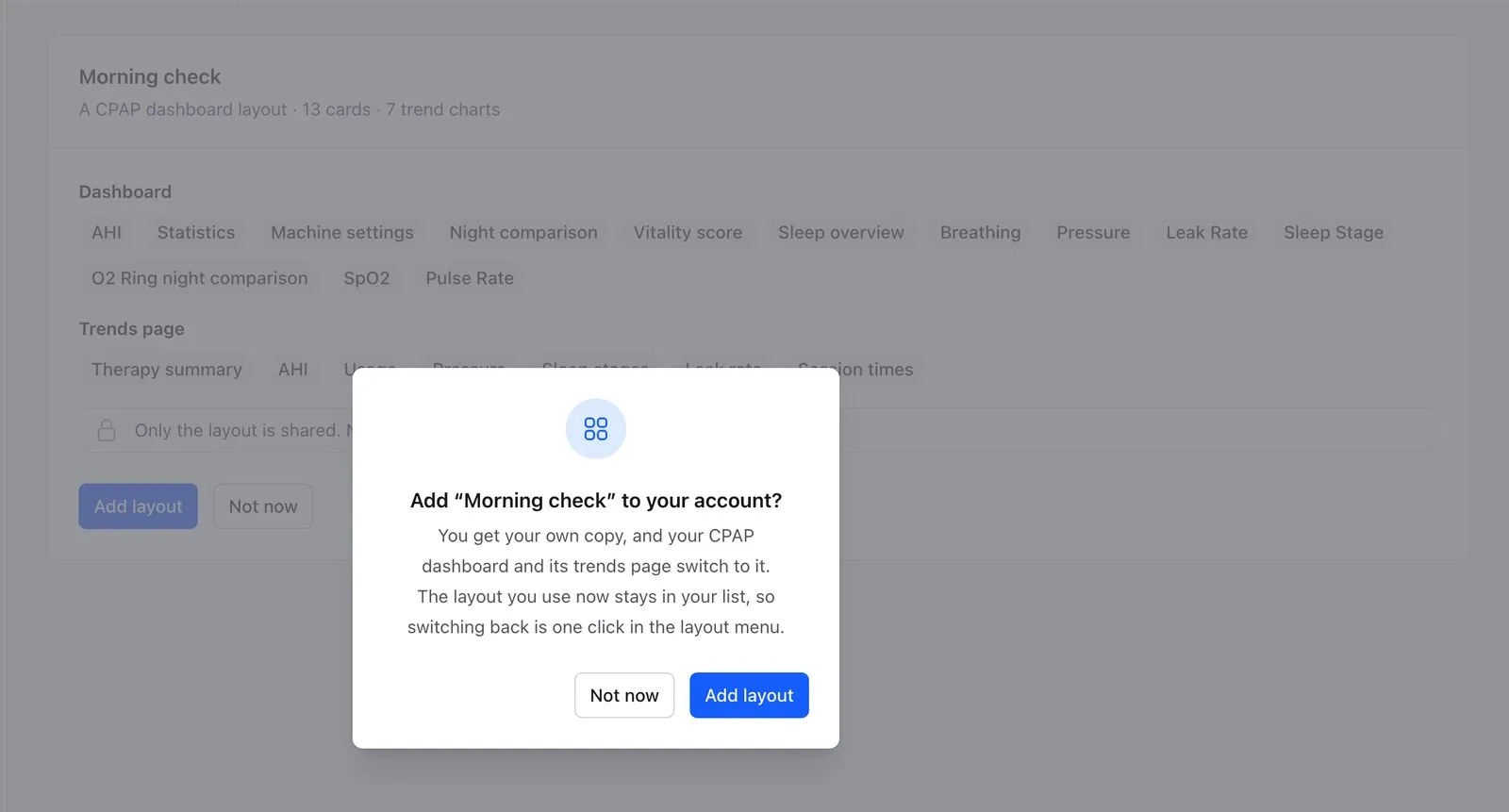
Found a layout that works for you? Share it. Every saved layout has its own link that you can send to a friend or post in the SleepHQ community, and anyone with SleepHQ Pro who opens it can add a copy to their own account.
A shared layout carries the design and nothing else: its cards, their sizes and colours, and the name you gave it. None of your sleep data, your name or your account details go with it. Once someone adds a copy it is theirs, so changes they make never reach your layout, and yours never reach theirs.
Your share links stay private
If you use SleepHQ share links to show your sleep data to someone, they now see it laid out your way, in the layout you were using when you made the link. You can change which layout a link uses at any time.
If the person viewing your link is signed in to their own SleepHQ account, they can switch it to “My layout” to see your data in the arrangement they are used to, and tick “Always open share links in my layout” to make that their default. Only the arrangement changes: every card still shows your data.
Layouts only change how your data is arranged. No data goes anywhere new, and nothing is shared that wasn’t shared before. If your clinic is connected to your account, they still see the standard view, so they never have to learn your arrangement to review your therapy.
On your phone and in the app
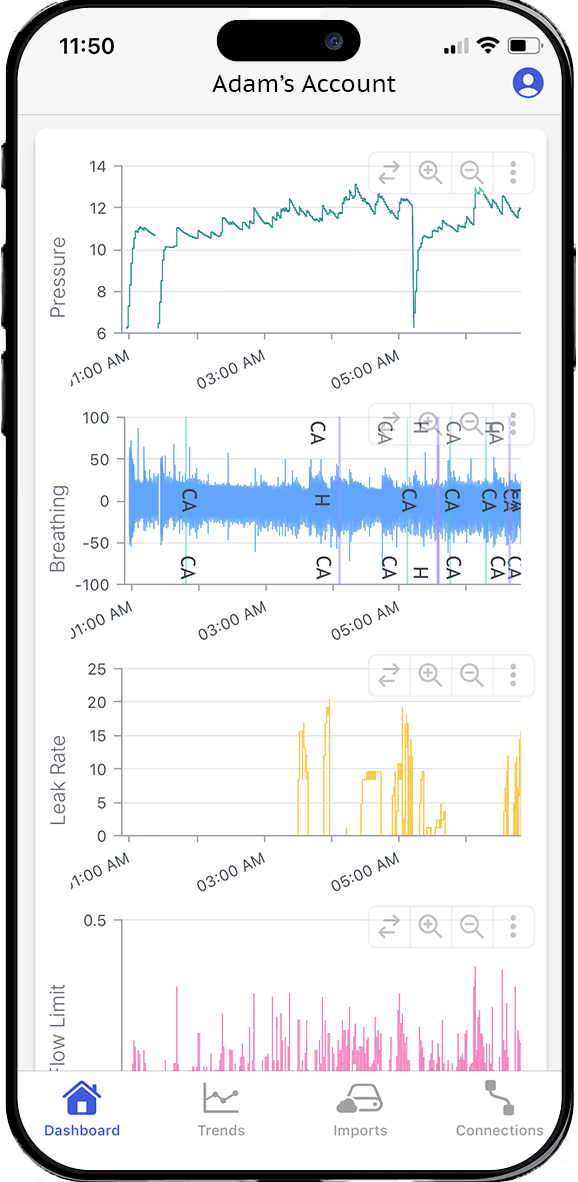
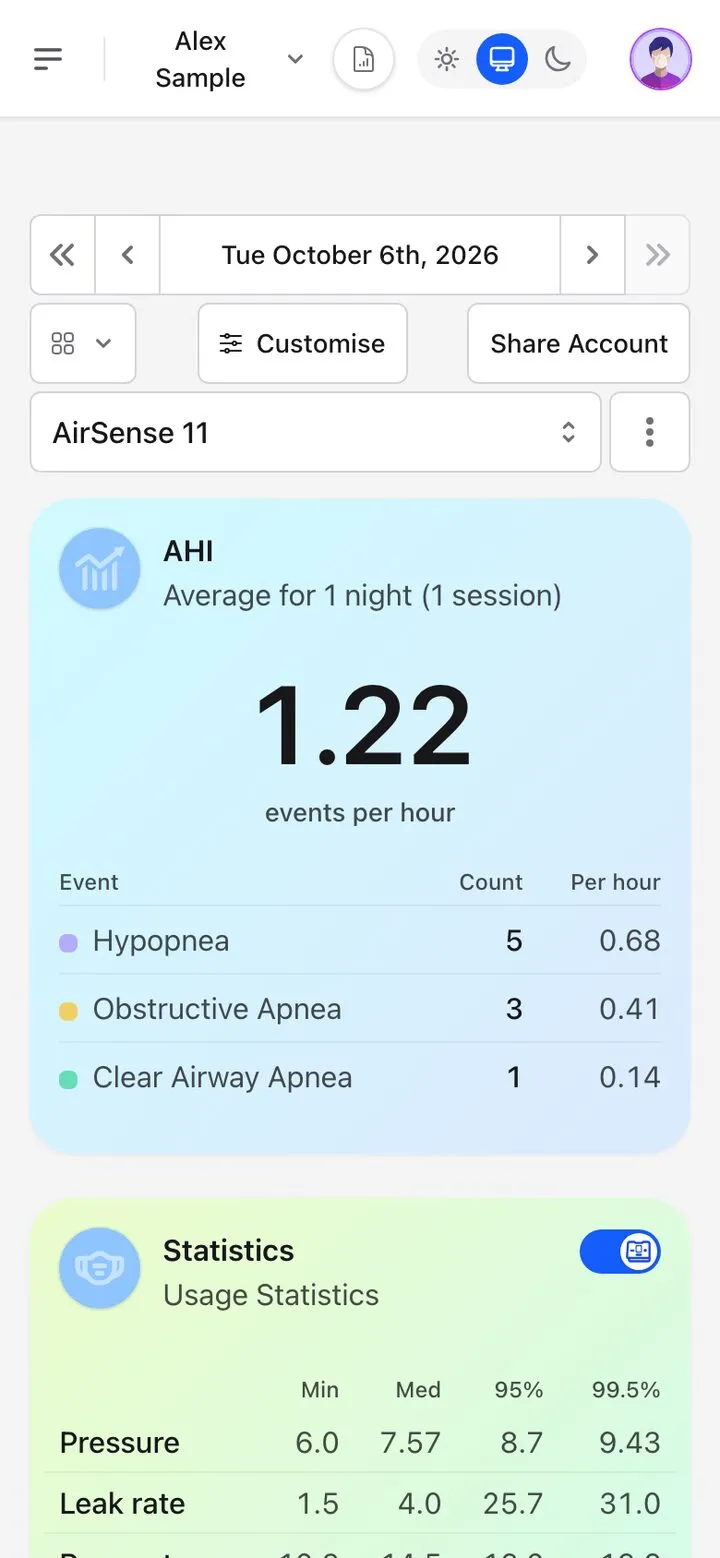
Your layouts come with you to your phone and the SleepHQ app. On a small screen the cards stack neatly into a single column, and you can switch layouts or restyle a card wherever you are.
Free and Pro
Every SleepHQ account can switch between the built-in Standard and Advanced layouts. Customising your dashboard and trends, styling cards, saving your own layouts and adding layouts that others share with you are part of SleepHQ Pro, and you can try them all during a free trial.
See it in action
SleepHQ co-founder Nick Dunn walks through custom dashboards in a six-minute video. He compares it to making a pizza: everyone wants different toppings, and someone on CPAP, someone with an oral appliance, someone on a GLP-1 and a clinician each care about different numbers, so each can build the dashboard that suits them.

Try it today
Custom dashboards are available now. If you already use SleepHQ, open your dashboard and press Customise to start. If you’re new, create a free account, upload your data and see your own nights your way. You can compare plans in our pricing section.
SleepHQ members can find a full step-by-step guide in the community knowledge base.

Nick Dunn
SleepHQ Founder